

Exploring Log Locations in VCF 9: Where to Find What

Below is a list of logs and the log file paths for all VCF appliances, intended to support basic troubleshooting efforts:
VCF Installer
VCF Installer Log Location and File Structure:

You can perform the troubleshooting of the VCF installation by reviewing the following log files, depending on the deployment stage:
Stage | Appliances | Log Location |
VCF Installation | VCF Installer | /var/log/vmware/vcf/domainmanager/domainmanager.log |
vCenter Deployment | VCF Installer | /var/log/vmware/vcf/domainmanager/domainmanager.log /var/log/vmware/vcf/domainmanager/ci-installer-<id>workflow_<id>/vcsa-cli-installer.log |
SDDC Manager Deployment | VCF Installer | /var/log/vmware/vcf/domainmanager/domainmanager.log /var/log/vmware/vcf/domainmanager/sddc-manager-ovf-tool<id>.log |
Troubleshooting ESX vSAN Preparation and DNS Configuration:
From the VCF installer appliance, navigate to /var/log/vmware/vcf/domainmanager/domainmanager.log
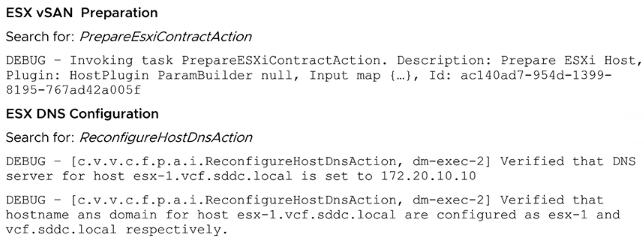
Troubleshooting ESX VM Network Port Group Creation:
From the VCF installer appliance, navigate to /var/log/vmware/vcf/domainmanager/domainmanager.log

Troubleshooting vCenter Deployment:
From the VCF installer appliance, navigate to /var/log/vmware/vcf/domainmanager/domainmanager.log

Troubleshooting SDDC Manager Deployment:
From the VCF installer appliance, navigate to /var/log/vmware/vcf/domainmanager/domainmanager.log

SDDC Manager:
Stage | Appliances | Log Location |
vSphere Cluster Configuration | SDDC Manager | /var/log/vmware/vcf/domainmanager/domainmanager.log |
NSX Deployment | SDDC Manager | /var/log/vmware/vcf/domainmanager/domainmanager.log/var/log/vmware/vcf/domainmanager/nsx-ovf<id>.log |
VCF Fleet Management Deployment | SDDC Manager | /var/log/vmware/vcf/domainmanager/domainmanager.log |
SDDC Manager Log Location and File Structure:
The log files related to the vSphere cluster configuration, the NSX management cluster deployment, and the VCF fleet management appliance are located in the /var/log/vmware/vcf/domainmanager folder of the SDDC Manager appliance.

Troubleshooting vSphere Cluster Configuration:
From the SDDC Manager appliance, navigate to /var/log/vmware/vcf/domainmanager/domainmanager.log

Troubleshooting vSphere Cluster Networking Configuration:
From the SDDC Manager appliance, navigate to /var/log/vmware/vcf/domainmanager/domainmanager.log

Troubleshooting VM Migration to the Distributed Portgroup:

Troubleshooting DRS and HA vSphere Cluster Configuration:
From the SDDC Manager appliance, navigate to /var/log/vmware/vcf/domainmanager/domainmanager.log

Troubleshooting NSX Deployment:
From the SDDC Manager appliance, navigate to /var/log/vmware/vcf/domainmanager/domainmanager.log

Troubleshooting NSX Configuration:
From the SDDC Manager appliance, navigate to /var/log/vmware/vcf/domainmanager/domainmanager.log

Troubleshooting Transport Node Profile Creation:
From the SDDC Manager appliance, navigate to /var/log/vmware/vcf/domainmanager/domainmanager.log

VCF Operations Fleet Management Deployment:
From the SDDC Manager appliance, navigate to /var/log/vmware/vcf/domainmanager/domainmanager.log

VCF Fleet Management:
Stage | Appliances | Log Location |
VCF Operations Deployment | VCF Fleet Management | /var/log/vrlcm/vmware_vrlcm.log |
VCF Automation Deployment | VCF Fleet Management | /var/log/vrlcm/vmware_vrlcm.log/var/log/vrlcm/vmsp_bootstrap_<id>.log |
SDDC Manager Log Location and File Structure:
The log files related to the VCF Operations and VCF Automation deployment are located in the /var/log/vrlcm folder of the VCF Fleet Management appliance.

Troubleshooting VCF Operations and Collector Deployment:
From the VCF Fleet Management appliance, navigate to /var/log/vrlcm/vmware_vrlcm.log
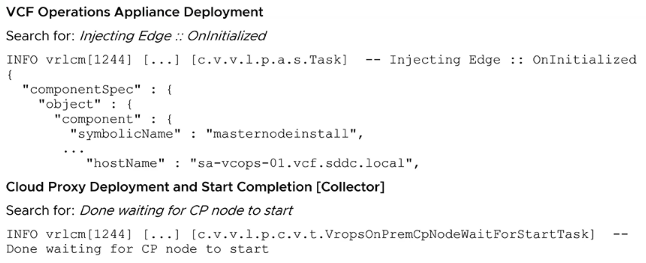
Troubleshooting VCF Adapter Configuration and VCF Operations Inventory Synchronization:
From the VCF Fleet Management appliance, navigate to /var/log/vrlcm/vmware_vrlcm.log

Troubleshooting VCF Automation Deployment:
From the VCF Fleet Management appliance, navigate to /var/log/vrlcm/vmsp_bootstrap_<id>.log

Checking the Health Status of VCF Automation Deployment:
From the VCF Fleet Management appliance, navigate to /var/log/vrlcm/vmsp_bootstrap_<id>.log

VCF Operations:
Troubleshooting License Management
You can review licensing logs on the VCF Operations appliance:
Component | Log File |
API Service | /storage/log/vcops/log/api.log /storage/log/vcops/log/http_api.log |
VCF license plugin | /storage/log/vcops/log/vcf-licensing-plugin.log |
License usage plugin | /storage/log/vcops/log/license-usage-plugin.log |
Analytics service | /storage/log/vcops/log/analytics-wrapper.log /storage/log/vcops/log/analytics-<id>.log /storage/log/vcops/log/analytics.audit-<id>.log |
Management Adapter | /storage/log/vcops/log/adapters/ManagementAdapter/ManagementAdapter_XX.log |
Troubleshooting Failed License Import. From the VCF Operations Management appliance, navigate to the location below to review the license suite API logs.
/data/log/vcops/log/api.log
Review the license usage in Management Adapter logs:
/data/log/vcops/log/adapters/ManagementAdapter/ManagementAdapter_xx.log
Troubleshooting VCF Operations License Store. VCF Operations stores license information locally in its central database.
When reviewing issues with stored license information:

Troubleshooting License Assignment Log Files. From the VCF Operations console, you assign a license to entities such as vCenter.
Navigate to the location below to review the license assignment log for vCenter:

Log shows that the argument passed to assign API contains a null value, and the server returns Bad Request. Verify the entitlements in the VCF Operations console.

Log extract from vcf-licensing-plugin.log on the VCF Operation shows a successful assignment of vCenter. The entity id, and hostname can be seen in the INFO entry.

vCenter License Assignment Errors:
Potential vCenter licensing failures

Troubleshooting Centralized Password Management. If you encounter issues with password management, review the following log using the VCF Operations Console, navigating to: Administration > Control Panel > Support Logs.
Component | Log File |
Suite API | /storage/log/vcops/log/http_api.log /storage/log/vcops/log/web.log /storage/log/vcops/log/api.log |
Bridge Plugin Persistence Task Handling | /storage/vcops/log/vcops-bridge.log |
Management Adaptor | /storage/vcops/log/adapters/ManagementAdapter/ManagementAdapter_xx.log |
Troubleshooting Tag Management. If you encounter issues with tag management, review the following log using the VCF Operations Console, navigating to: Administration > Control Panel > Support Logs.
Component | Log File |
Tagging log files VCF Operations | |
Tagging Plugin | /storage/log/vcops/log/vrops-tagging.log |
Management Adapter | /storage/vcops/log/adapters/ManagementAdapter/ManagementAdapter_xx.log |
Suite API | /storage/vcops/log/api.log |
Analytics | /storage/vcops/log/analytics-<UUID>.log /storage/vcops/log/analytics-wrapper.log |
Collector | /storage/vcops/log/collector.log /storage/vcops/log/collector-wrapper.log |
vCenter tagging Service Log File | |
vpxd services | /var/log/vmware/vpxd-svcs/vpxd-svcs.log |
VCF Operations Tag Import Task. In the log excerpt from the ManagementAdapter_<ID>.log file on the VCF Operations appliance, you can see a successful import task.

In the log excerpt from the /storage/vcops/log/vrops-tagging.log log file on the VCF Operations appliance, you can see a successful import task.

Troubleshooting vCenter Groups. You can access logs related to vCenter groups components on the VCF Operations appliance navigating to: Administration > Control Panel > Support Logs.
Operations Component | Log Location |
vCenter Linking Plugin | /storage/vcops/log/vrops-vcenter-linking.log |
vCenter Linking Component | /storage/vcops/log/adapters/ManagementAdapter/ManagementAdapter_ID.log |
Suite API | /storage/vcops/log/api.log |
Analytics log files | /storage/vcops/log/analytics-<id>.log |
Collector log files | /storage/vcops/log/collector.log /storage/vcops/log/collector-wrapper.log |
Troubleshooting Lifecycle Management. If you encounter issues with lifecycle management, review the following log on the VCF Operations appliance:
Component | Log file |
VCF Operations Bridge | /storage/log/vcops/log/vcops-bridge.log |
Platform API | /storage/log/vcops/log/api.log |
Log location on SDDC manager Appliance: | |
Operations | /var/log/vmware/vcf/operationsmanager.log |
Troubleshooting Compliance Drift. Log Location:

Troubleshooting VCF Diagnostics. Gathering logs in the VCF Operations Console. Navigate to Administration > Control Panel > Support Logs > (Cloud Proxy | Cluster Node) > Collector > adapters > DiagnosticsAdapter
Gather the logs from the VCF Operations appliance command line:
/storage/log/vcops/log
/storage/log/vcops/log/adapters/DiagnosticsAdapter/*
Troubleshooting VCF Health. Application logs for VCF health information are stored on the VCF Operations appliance. Logs can be found in the below location:

Troubleshooting Log Assist. Gathering logs in the VCF Operations Console, navigate to Administration > Control Panel > Support Logs > {Cloud Proxy | Cluster Node} > Collector > adapters > LogAssistAdapter
Gather the logs from the VCF Operations appliance command line from the below location:
/storage/log/vcops/log
/storage/log/vcops/log/adapters/LogAssistAdapter/*
Troubleshooting NSX Health Monitoring. When troubleshooting issues with the NSX health Monitoring, review the logs in VCF Operations.
Logs in the VCF Ops Console Navigate to Administration > Control Panel > Support Logs > VCOPS_BRIDGE
Log location on VCF Appliance:
/storage/log/vcops/log/adapters/NSXTAdapter/NSXTAdapter_*.log
/storage/log/vcops/log/vcops-bridge.log
Troubleshooting GPU metrics. Review the following logs on the VCF Operations Appliance. Gathering logs in the VCF Operations console, navigate to Administration > Control Panel > Support Logs > Collector and adapters > VMwareAdapter.
Gather the logs from the VCF Operations appliance command line from the below location:
/storage/log/vcops/log-collector*
/storage/log/vcops/log/adapters/VMwareAdapter/*
Troubleshooting Security Operations. The logs are located on the VCF Operations appliance command line at the below location:
/storage/log/vcops/log/vcops-bridge.log
vCenter:
Troubleshooting License Management. You review the vCenter logs to provide details of the license entitlements.

Troubleshooting vCenter License Content Validation.
The vCenter log provides the relevant logs after a failed assignment due to expired entitlement. Navigate to /storage/log/vmware/cis-license.log on the vCenter appliance:

Troubleshooting vCenter Reduced Downtime Update, review the logs on both source and destination vCenter instances:

Troubleshooting vLCM Images, to troubleshoot Image Assignment:

Troubleshooting Custom EVC Modes. When troubleshooting issues with custom EVC, you review the logs as part of your troubleshooting vMotion issue.

The vLCM on the vCenter manages the patches and performs prechecks to ensure that the patch is compatible:

For ESX host process:

For VM-related issues:

Troubleshooting TLS issues, you can refer to the below log files on vCenter Server:

Example Log Snippets:

ESXi:
Troubleshooting License Management. You review the ESX logs to provide details of the license entitlements.

Troubleshooting ESX Licenses
To find the current license state of a host, execute the following command on an ESX:
/bin/vim-cmd vimsvc/license --show
Retrieve the license information from the ESX config store:
/bin/configstorecli config current get -c esx -g licensing -k entitlements
/bin/configstorecli config current get -c esx -g licensing -k state
Retrieve the host license information with the esxcli command:
/bin/esxcli licensing entitlement list
/bin/esxcli licensing credential list
Troubleshooting Memory Tiering, When troubleshooting issues related to memory tiering, you need to review both the vCenter and ESX host logs:

Verifying the functionality of Execinstalledonly. To confirm if the execinstalledonly feature is functioning correctly, login to the ESX host and try to run a non-installed binary.

ESX logs execinstalledonly-related activity in the below log files:

The below example shows the messages generated when execinstalledonly prevents a script to run from local storage:

vSphere Client also shows alerts and events when execinstalledonly prevents a script from running.

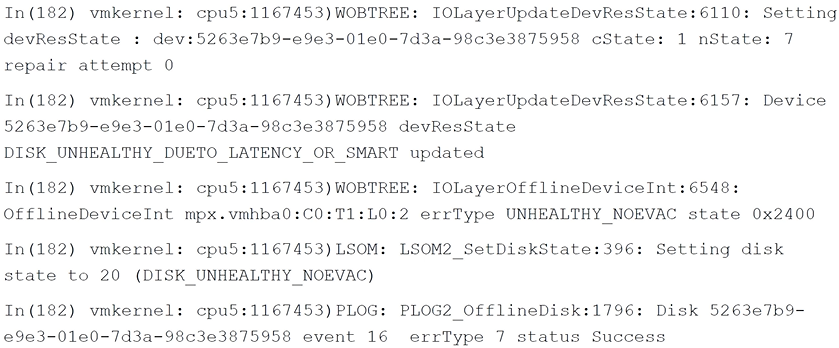
Troubleshooting vSAN Latency. If latency thresholds are exceeded on a device, the following messages are logged in the following log files:
/var/run/log/vsandevicemonitord.log


Troubleshooting SMART Impending device failure messages are logged in the following log files:
/var/run/log/vsandevicemonitord.log

If latency thresholds are exceeded on a device, messages are logged in the following log files:
/var/run/log/vobd.log

/var/run/log/vmkernel.log
Troubleshooting NFS Granularity Request Logs. These are examples of granularity success and failure logs from /var/log/vmkernel.log

Troubleshooting NFS Request Timeout, examples of an UNMAP Request Timeout from the /var/log/vmkernel.log.

Troubleshooting Virtual Machine UNMAP. To determine that a virtual machine has UNMAP functionality:
The VM must have a hardware version of 14 or higher.
Query the SCSI page to verify unmap support inside the VM using the below commands:
sg_vpd --page=bl /dev/sdb and
sudo sg_vpd --page=lbpv /dev/sdb


Comments