

Steps for connecting vCenter Server in SDDC

Below are the steps to connect to the vCenter Server in the VMware Cloud SDDC and create firewall rules:
Capture the network Information
Create Firewall Rules
Log In to the VMware Cloud SDDC vCenter Server Instance
Capture the network Information:
From the VMware Cloud console browser tab, access the Summary tab of your SDDC
On the VMware Cloud home page, click SDDCs on the left pane
Click the name of your SDDC
The Summary tab of the SDDC opens
Select the Networking & Security tab and click Overview
From here you can record all the network information like:
VPN Public IP
Appliance Subnet
Infrastructure Subnet
Source NAT Public IP

Under Networks, select Segments. The Segment List tab opens and you get the CIDR details for your segment

Create Firewall Rules:
You create a gateway firewall rule to give access to the VMware Cloud SDDC vCenter Server instance from any server
Whether you can allow access to vCenter Server from any server depends on your security model. It might not be advised. Instead, you can give specific IP ranges from which vCenter Server access is expected
In the VMware Cloud console browser tab, open the SDDC summary page
In the Networking & Security tab, select Gateway Firewall under Security
Click the Management Gateway tab
Create a firewall rule to allow all traffic to the vCenter Server

Click ADD RULE
Enter vCenter Inbound for the Name of the rule
Leave Any as the value for Sources
Click the edit icon in the Destinations text box
The Set Destination window appears
Select vCenter and click APPLY
Click the edit icon in the Services text box
Select the services:
HTTPS (TCP 443)
SSO (TCP 7444)
ICMP (ALL ICMP)
Leave Allow selected in the Action drop-down menu
Click PUBLISH

Create a firewall rule to allow all traffic to ESXi
Click ADD RULE
Enter ESXi Inbound for the Name of the rule
Leave Any as the value for Sources
Click the edit icon in the Destinations text box
The Set Destination window appears
Select ESXi and click APPLY
Click the edit icon in the Services text box
Select the services:
HTTPS (TCP 443)
ICMP (ALL ICMP)
vMotion (TCP 8000)
Provisioning and Remote Console (TCP 902)
Leave Allow selected in the Action drop-down menu
Click PUBLISH

Log In to the VMware Cloud SDDC vCenter Server Instance:
You log in to the vSphere Client to view your new SDDC
In the VMware Cloud console browser tab, click OPEN VCENTER in the top-right corner. The Open Access to vCenter dialog box appears
Click SHOW CREDENTIALS

Click the Copy password to clipboard icon

Click OPEN VCENTER

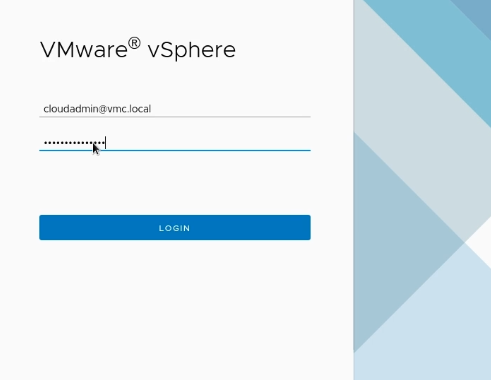
A new browser tab opens for the VMware vSphere login page
Enter cloudadmin@vmc.local in the User name text box
In the Password text box, paste the password that you copied
Click LOGIN
The vSphere Client appears


Comments